Turning an Old iPad into a Wall/Desktop Dashboard or Google Photo Frame
Table of Contents
If you have an old iPad sitting in a drawer, you probably know the frustration: the screen still looks great, the battery still holds a charge when plugged in, and yet the App Store won’t let you install almost anything modern because it’s stuck on an old iOS version.
I had an iPad mini 2 stuck on iOS 12.5.7 in exactly that state. It felt wasteful to throw away a perfectly good Retina display, so I built Glance — an open-source, full-screen wall dashboard app designed specifically to run 24/7 on old iPads (and newer iPads or desktops, too). No App Store needed, no jailbreak, no API keys, no subscription — just open Safari, tap Add to Home Screen, and mount it on a stand or wall.
Why old iPads need a different kind of web app #
You might wonder: why not just open any existing dashboard website on an old iPad?
I tried. Most modern web apps break on iOS 12 for a few unglamorous reasons:
- Old Safari JavaScript engine: Safari 12 doesn’t understand a lot of newer JavaScript syntax and trips over modern
<script type="module">loading quirks. - Old CSS engine: Features everyone takes for granted today (like
gapin flexbox) don’t work on Safari 12. - Tight hardware: The iPad mini 2 has an A7 chip from 2013 and only 1 GB of RAM. Heavy frameworks, constant re-renders, or nonstop animations will either heat up the tablet or cause Safari to reload the tab.
Glance is built from the ground up with those limits in mind. The frontend uses lightweight Preact compiled into a classic ES5 bundle (~127 KB gzipped) with zero module-script traps, Safari 12-safe CSS, a one-tap Static mode so the A7 stays cool all day, offline caching, and a silent 3:30 AM refresh so it can run unattended for months.
What’s on the dashboard #
Glance automatically rotates through six full-screen slides (you can also swipe up/down or tap the rail on the right to jump to any screen, which pauses rotation for a minute).
1. Weather & World Clocks #
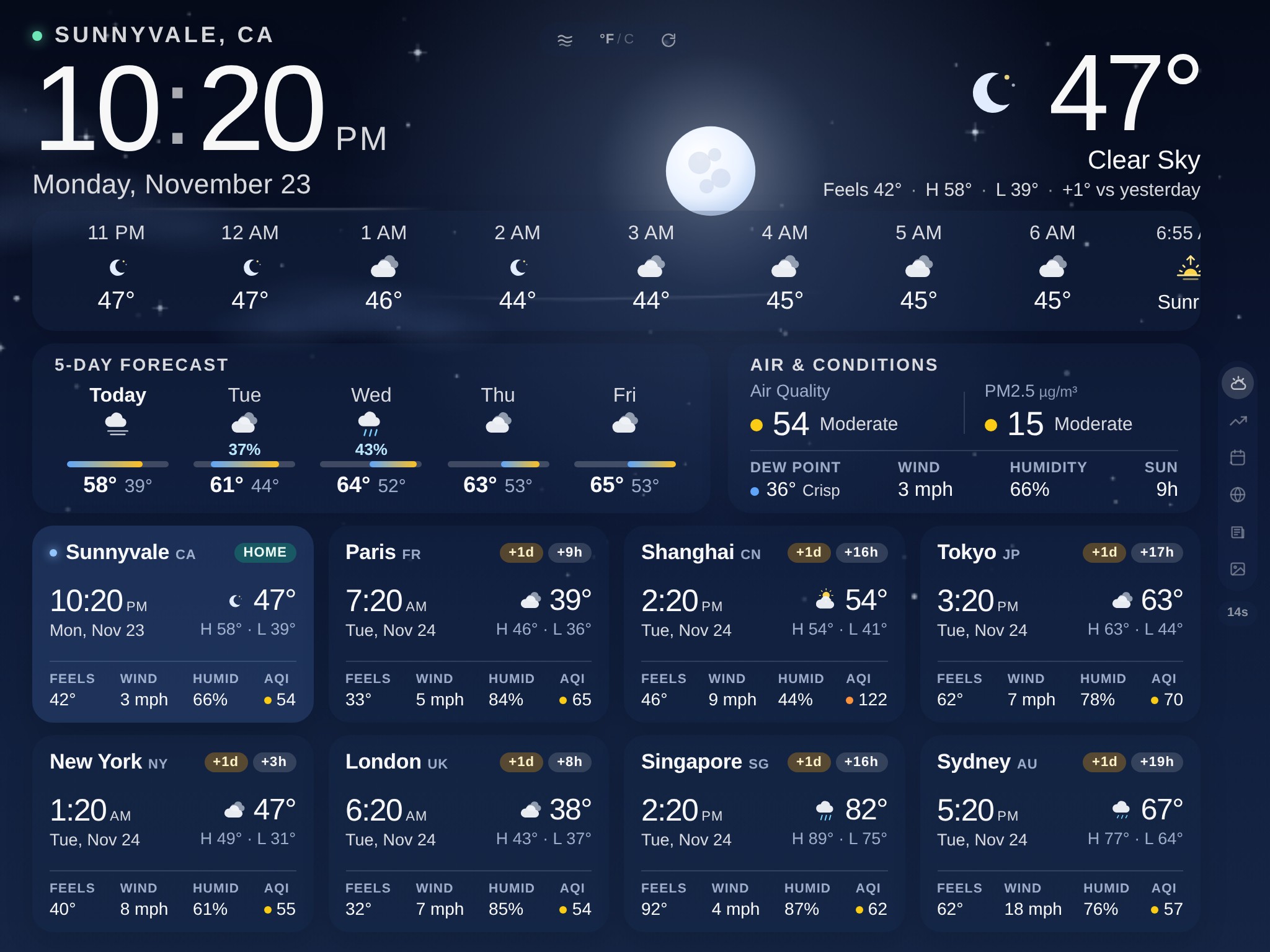
A room-readable clock paired with current conditions, a scrollable 24-hour forecast, a 5-day outlook, air quality (US AQI), UV index, and sunrise/sunset. Along the bottom are live clocks and weather for your favorite cities around the world — tap any city card and the whole screen (including the sky) shifts to that city.
The background sky changes color through dawn, day, sunset, and night, and shows the actual lunar phase at night.
Weather data is mostly fetched from Open Meteo which is free without need for an API key for personal use only.
2. Stocks Watchlist #
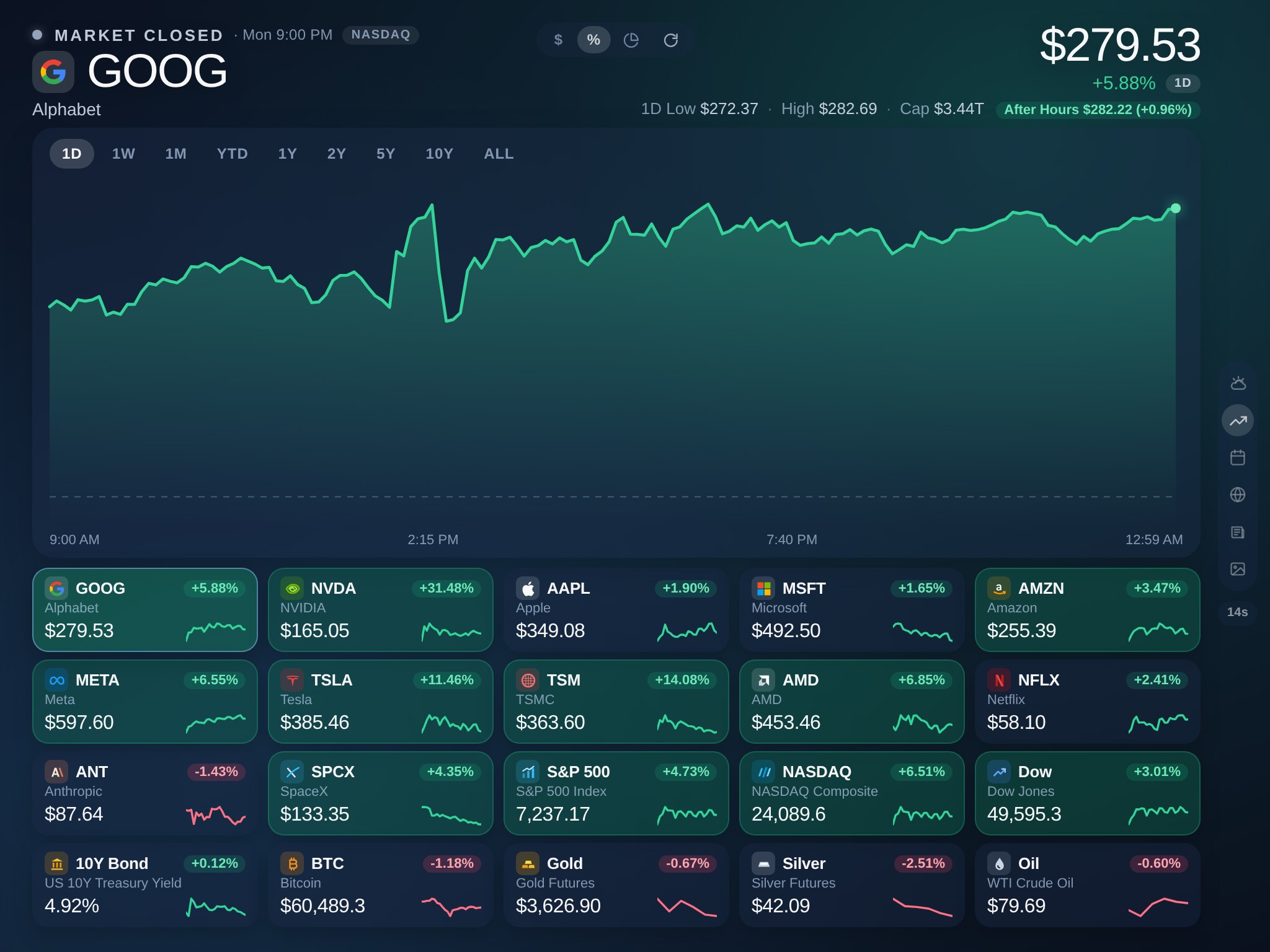
A clean 20-card watchlist (indices, stocks, crypto, gold, oil — whatever symbols you put in the config) with a tappable hero chart spanning 1D all
the way to ALL. You can drag across the chart to inspect past prices, switch cards between $, %, and market cap, and it automatically polls
faster when the market is open and slows down after hours.
Financial data is fetched from Yahoo Finance for personal use only.
3. Family Calendar #
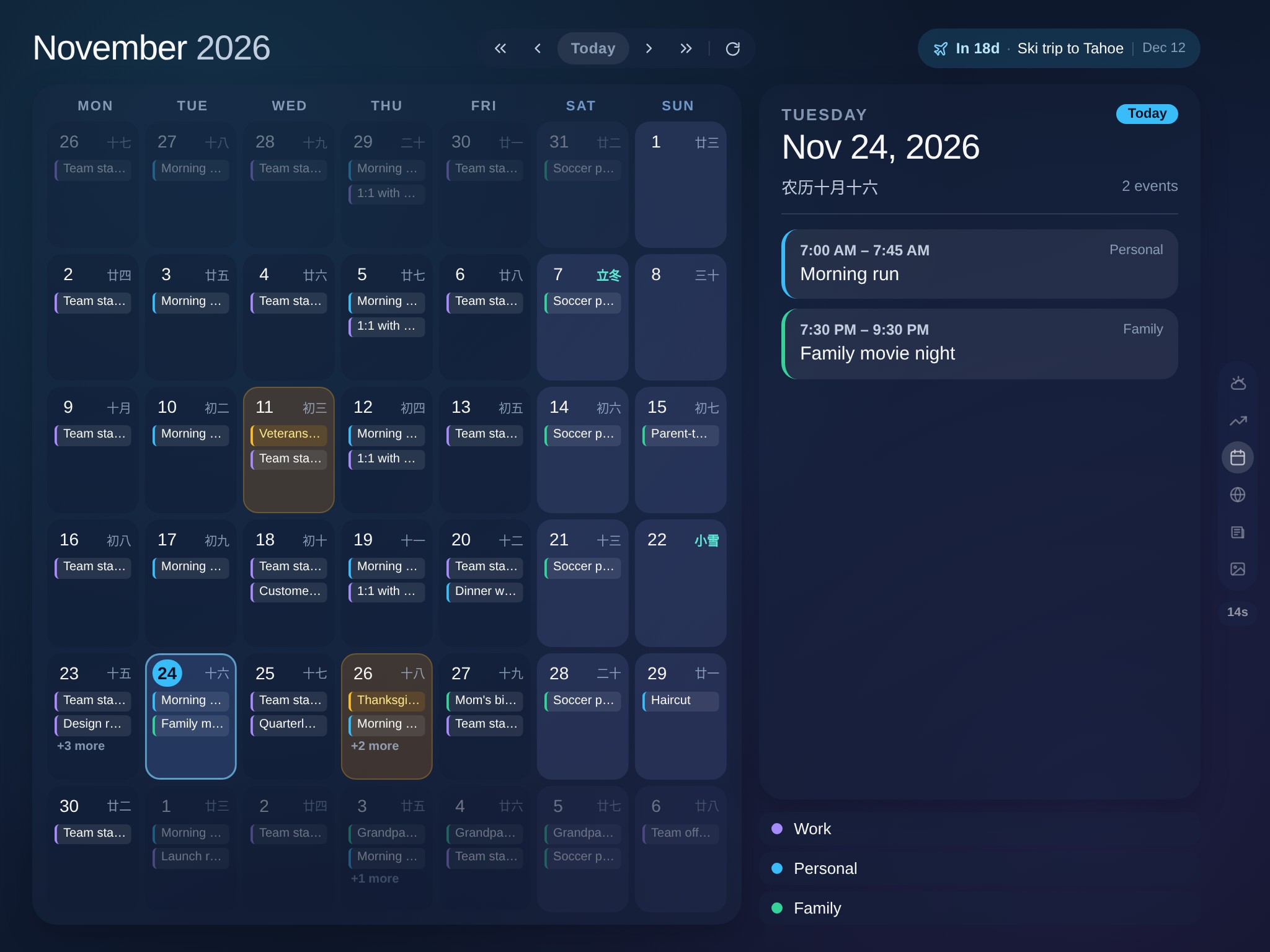
A side-by-side month grid and daily agenda that pulls from your private .ics calendar links (Apple iCloud, Google Calendar, Outlook — anything with
a secret .ics or webcal:// URL). It also includes US federal holidays, Chinese lunar dates (1900–2100), a “NOW” indicator on active events, and a
countdown pill for your next upcoming trip.
4. Live World Map & Exchange Rates #
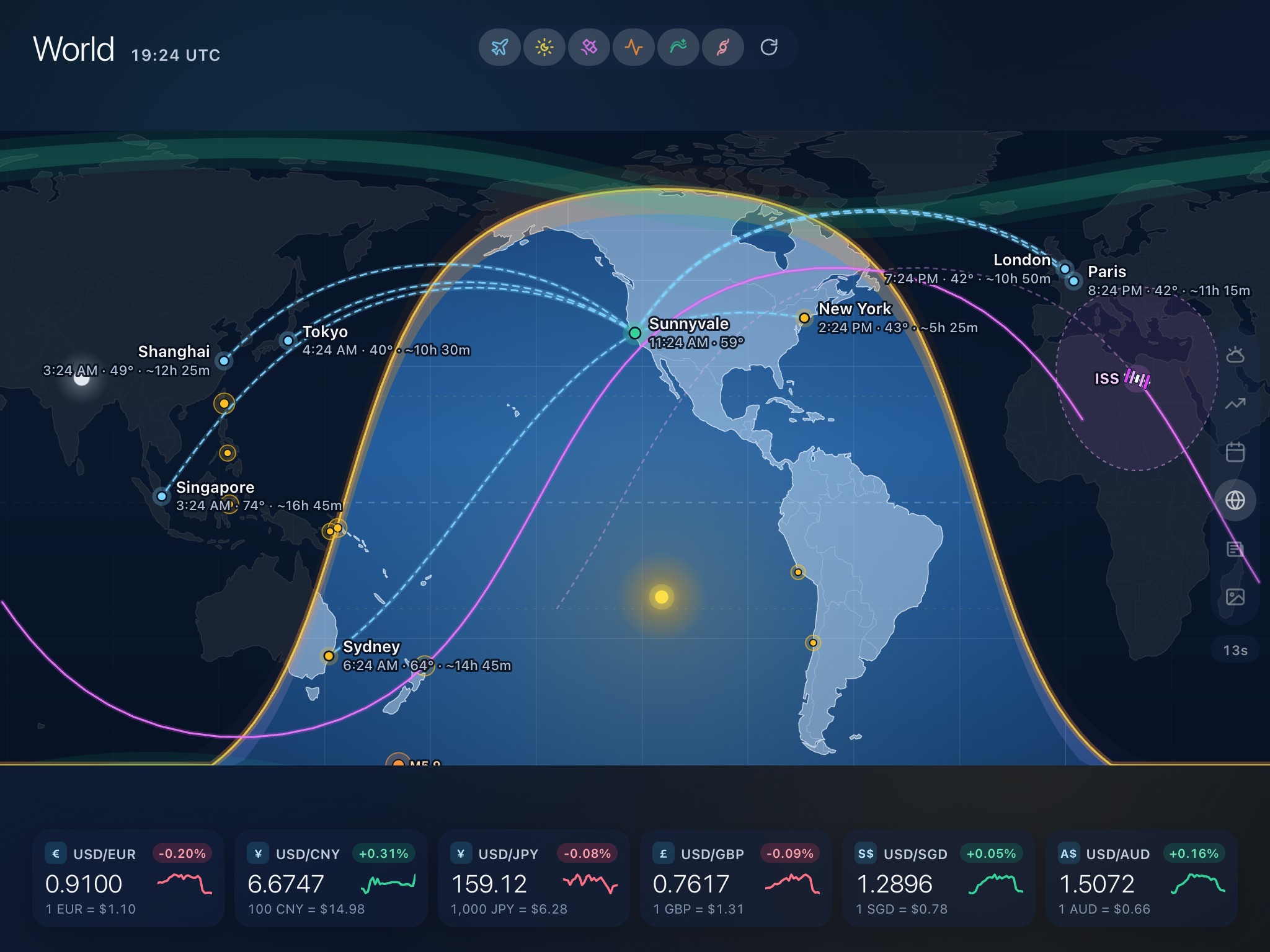
A real-time day/night world map centered on your home city, showing flight arcs to your other cities, live FX rates derived automatically from those cities, plus toggleable live layers:
- Sun & Moon — tap either to see subsolar/sublunar coordinates, declination, sunrise/sunset, moon phase, lunar day, and tide regime.
- Aurora ovals — live NOAA Kp-index bands that widen and deepen in color during geomagnetic storms.
- ISS — real-time orbit track and visibility footprint.
- Earthquakes & Tropical Cyclones — recent M4.5+ quakes (USGS) and active hurricanes/typhoons (NHC + GDACS), all tappable for details.
Data is all computed or fetched from public domains.
5. Headlines (RSS + QR Code) #
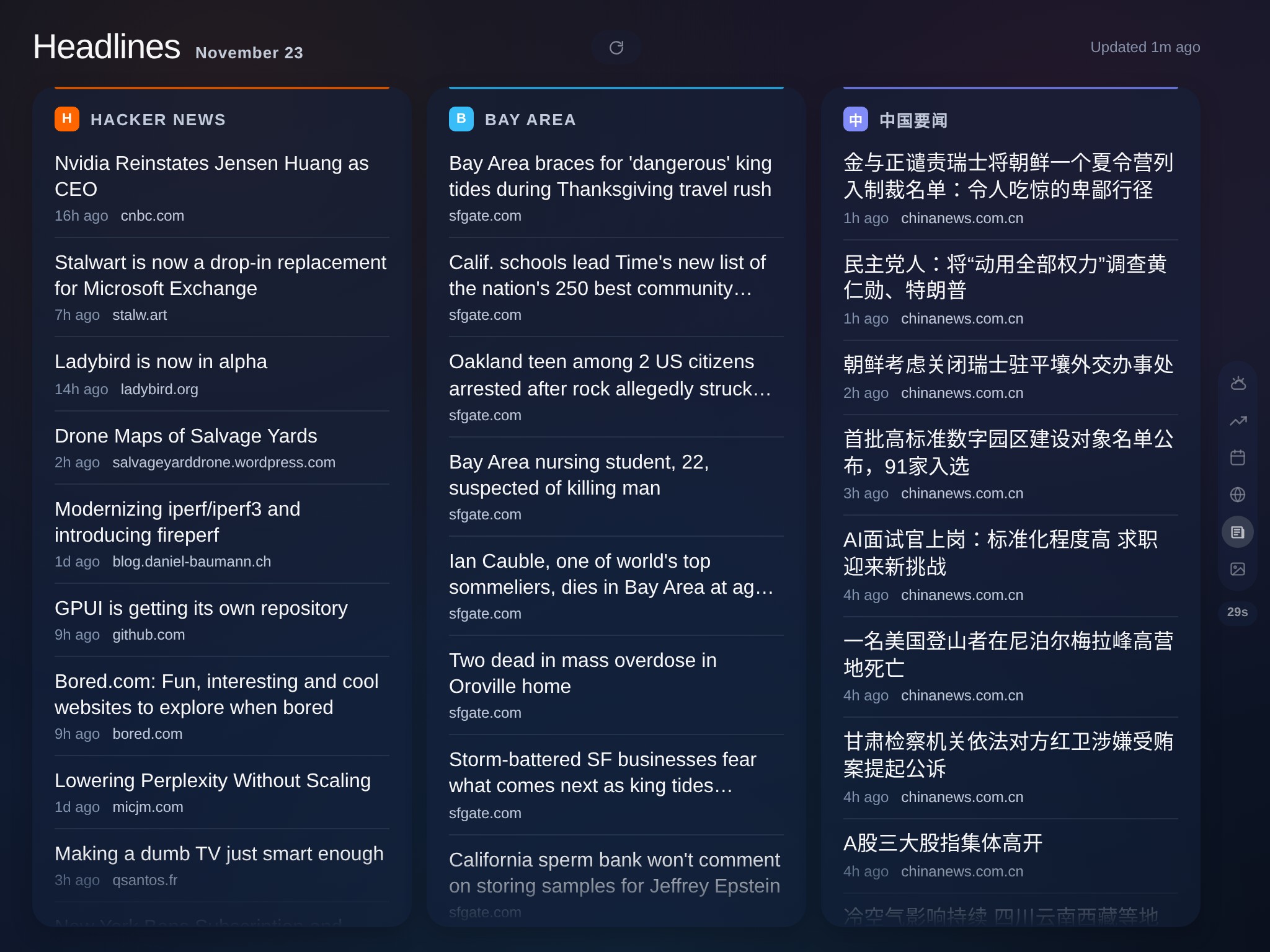
Point Glance at up to four RSS or Atom feeds and it renders them in clean columns. Since nobody wants to read long articles on a wall-mounted tablet, tapping any headline pops up a summary and a QR code you can scan with your phone. If you add a free Gemini API key, it can also generate a 2–3 sentence AI TL;DR right inside the popover.
6. Photo Frame #
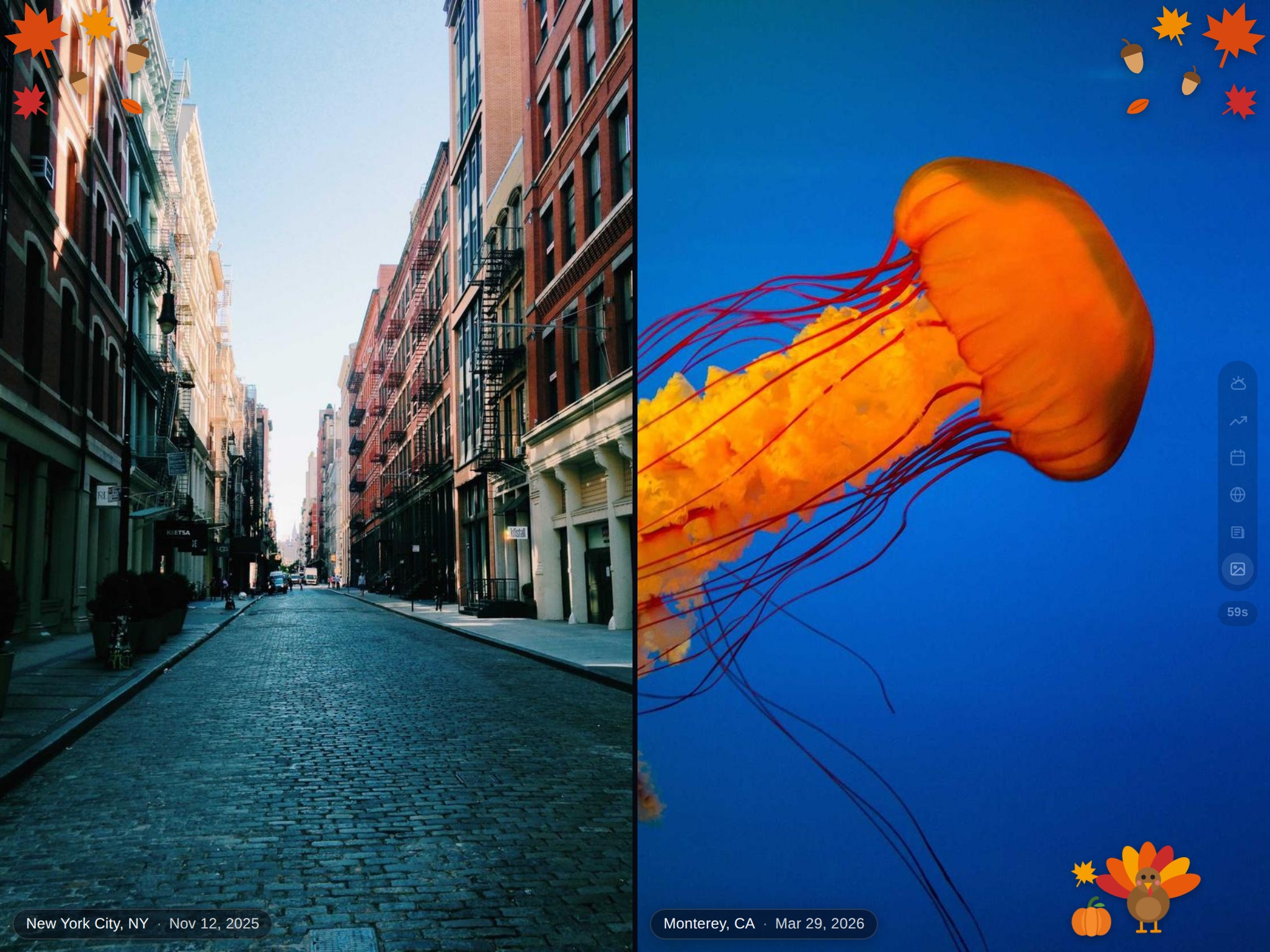
Link one or more shared Google Photos albums and Glance turns your iPad into a smart digital photo frame. It automatically groups landscape and portrait shots into full-bleed collages (so vertical photos don’t get awkward black bars), overlays the date and location, and interleaves photos between your other dashboards.
This feature requires sharing your Google Photo albums via public URLs, so technically if you leak those URLs anyone can see your photos. Make sure to never post those URLs, add them to your .gitignore or set as secret on Vercel. Do this at your own risk.
The photo frame can also show seasonal holiday themes such as Christmas, Halloween, Easter; as well as traditional Chinese holidays such as Chinese New Year, Moon Festival.
Night Ambient Mode #
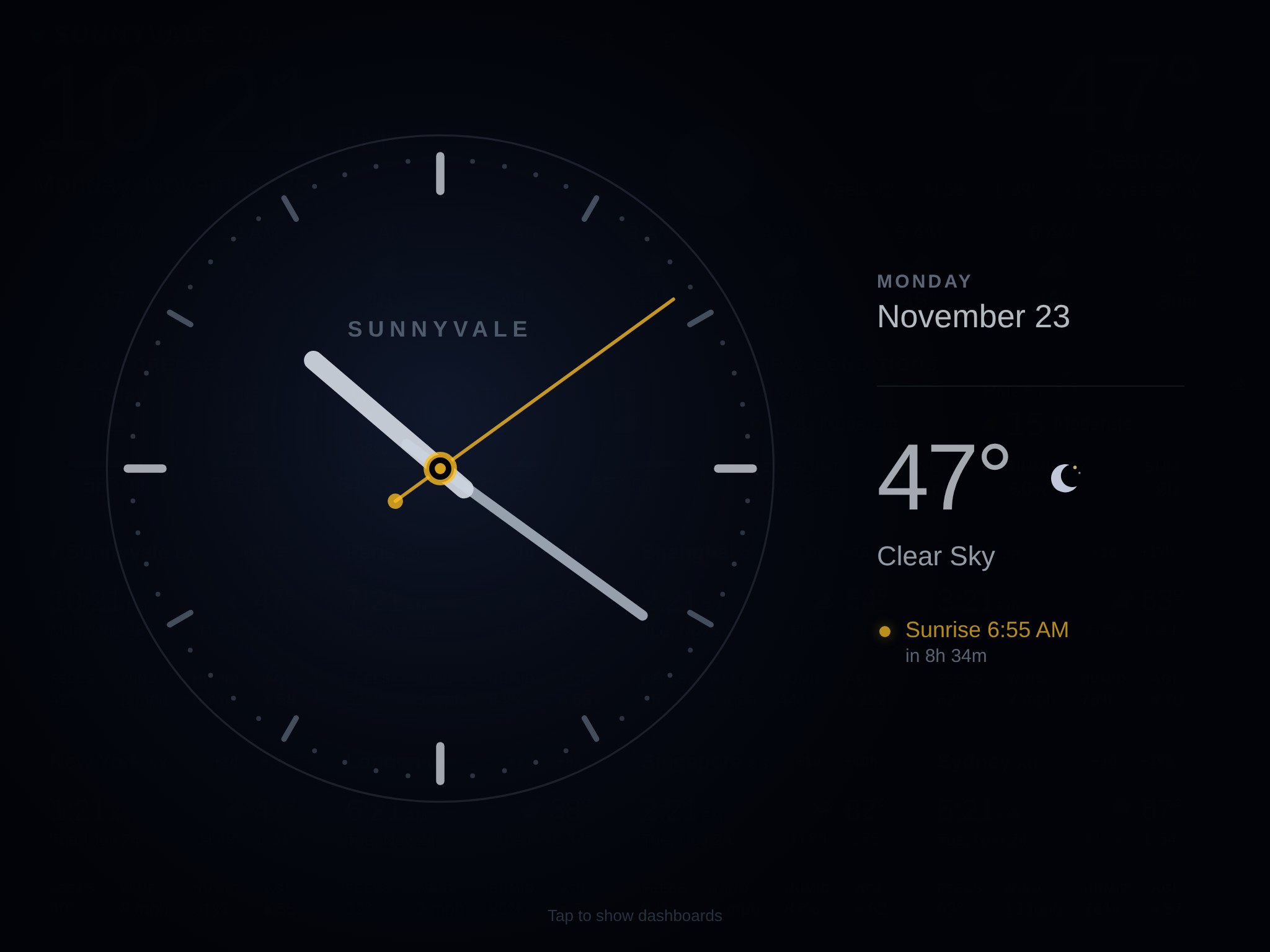
At night (11 PM – 7 AM by default), Glance dims down into a quiet bedside clock: a minimal analog dial with a ticking second hand, the date, current weather, and a countdown to sunrise. Background animations and polling pause behind it, and the layout gently shifts a few pixels every minute to avoid static image retention. Tap anywhere to wake the full dashboards back up.
How to set it up (no experience required) #
Weather, Stocks, and the World map work out of the box with zero API keys. Calendar, Photos, Headlines, and AI summaries are all optional.
You have two ways to host Glance:
Option A: Host for free on Vercel (easiest — no terminal needed) #
If you want your iPad to work from anywhere without keeping a computer running at home, Vercel’s free tier is the simplest path.
- Fork the Glance repository on GitHub.
- Sign in to vercel.com/new with GitHub and import your fork.
- Before clicking Deploy, open Environment Variables and add two security settings so your dashboard is locked behind a 4-digit PIN:
GLANCE_PASSCODE— any 4-digit PIN you want (for example1234)GLANCE_SESSION_SECRET— any random 32+ character string (you can generate one withopenssl rand -hex 32or a password generator)
- Click Deploy. In about a minute, Vercel gives you your own
https://your-app.vercel.applink.
Whenever you want to add your own cities or stock tickers later, just edit config/dashboard.config.json right on GitHub — Vercel redeploys
automatically and your iPad picks up the update on its own.
Option B: Host locally on a Mac, Linux box, or Raspberry Pi #
Prefer to keep everything on your home Wi-Fi? You only need Node.js 18+ and Go 1.23+.
git clone https://github.com/hzqtc/glance.git
cd glance
npm install
Then start the Go API and the Safari 12-compatible build in two terminals:
# Terminal 1 — Go backend API (port 8080)
npm run dev:api

# Terminal 2 — Production build served on your local network (port 4173)
npm run build && npm run preview
Open http://<your-computer-ip>:4173 on your iPad. When hosting locally without GLANCE_PASSCODE set, it skips the PIN screen so you can try it
immediately.
Adding your personal Calendar, Photos, or News #
All personal links live in environment variables — never committed to Git:
- Vercel: Project Settings → Environment Variables
- Local: a
.env.localfile in theglancefolder
| Variable | What it enables |
|---|---|
CALENDAR_ICS_URLS | One or more private .ics / webcal:// calendar links |
PHOTOS_ALBUM_URLS | One or more Google Photos shared-album links |
NEWS_FEEDS | Up to 4 RSS/Atom feeds as JSON, e.g. [{"name":"Hacker News","url":"https://news.ycombinator.com/rss"}] |
GEMINI_API_KEY | Optional free key from Google AI Studio for article TL;DRs |
Putting it on your old iPad #
- Open your Glance URL in Safari on the iPad (enter your 4-digit PIN once; it stays unlocked for a year).
- Tap the Share button → Add to Home Screen, then launch Glance from the Home Screen so the Safari address bar disappears.
- On an older iPad (like an iPad mini 2), tap the top-center Motion icon once to switch the weather sky to Static mode — it remembers your choice and keeps the device cool.
- Go to Settings → Display & Brightness → Auto-Lock → Never, plug in a charging cable, and set it on a stand.
Give your old hardware a second life #
An iPad that can’t run modern apps anymore still has a sharp, bright, low-power screen that is better than most dedicated smart displays you can buy. If you have one sitting in a closet, give Glance a try.
The full source code is open source on GitHub. Feel free to fork it, tweak config/dashboard.config.json to make
it yours, or open an issue if you run into any quirks on another vintage tablet!